At Socie, we steer toward secure communities. Creating a good and secure user experience starts with setting privacy settings correctly and deliberately. You can also activate additional access control for even more security. And Two-factor authentication (2FA) for community administrators.
Privacy settings in the Socie app better explained.
In this blog post, we’ll take you through the privacy options, explaining the meaning behind each setting and the functionality of the associated options. We hope this explanation helps you gain a better understanding of privacy settings and enables you to set them to your liking!
In the community administration, under Members -> Settings -> Privacy, you will find several options for community administrators to adjust privacy settings around members.
1. Member profile
Depending on how you get your members to your community(read this blog to learn the ways you can add members), each member’s profile page may contain personal information. These include contact and address information, a profile picture and group information.
With the ‘Member Profile’ setting, you determine OR this information is displayed to other members.
Options:
Visible: If you choose the ‘Visible’ option, members have the ability to make their profile accessible to others, but can also hide their profile from other members if they wish.
Hidden: If you choose the ‘Hidden’ option, members cannot make their profile visible to others. However, the logged-in user’s profile always remains visible.
Notice: If you set this option to ‘Hidden,’ no other members’ profile information will be visible anywhere in the app. Fortunately, if you set this option to ‘Visible,’ you can do some additional security settings:
2. Show members in search
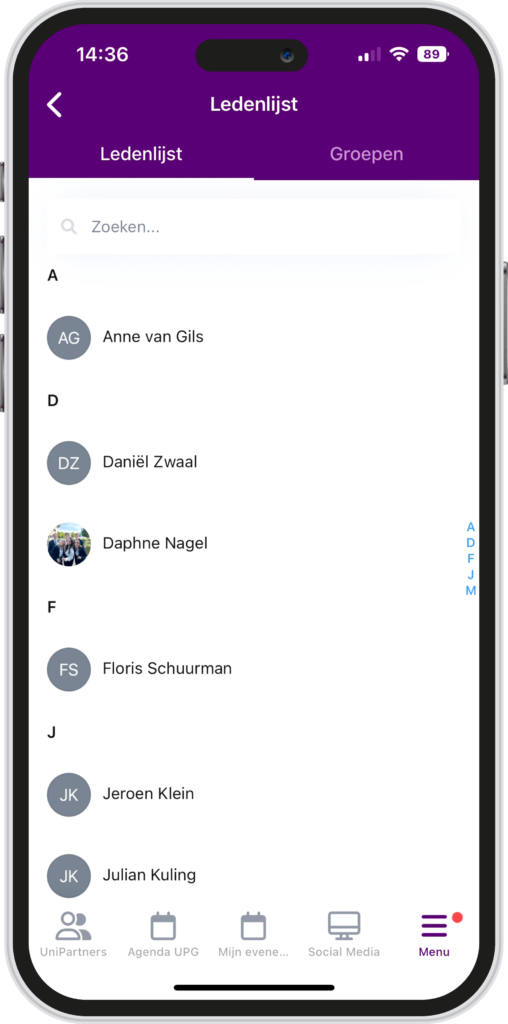
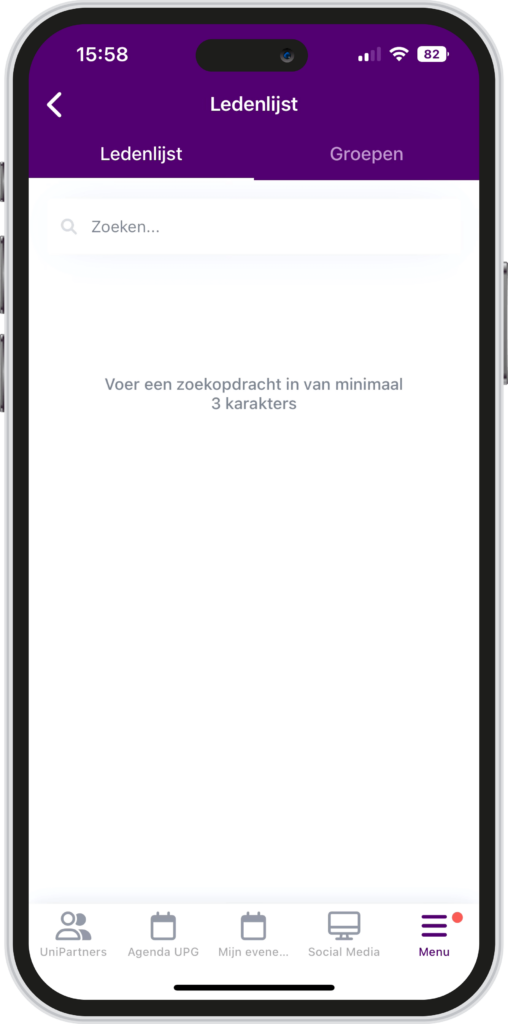
Within the Socie app, members can search for other member profiles. This setting relates to the visibility of members even before a search is entered. Do you want members to be displayed immediately, or do you want to start with an empty list and show member profiles after actively searching for them?
Options:
Displaying members: If you choose this option, members are displayed directly in the list without the need for a search. This means that members can access the full list of community members without performing a search first.
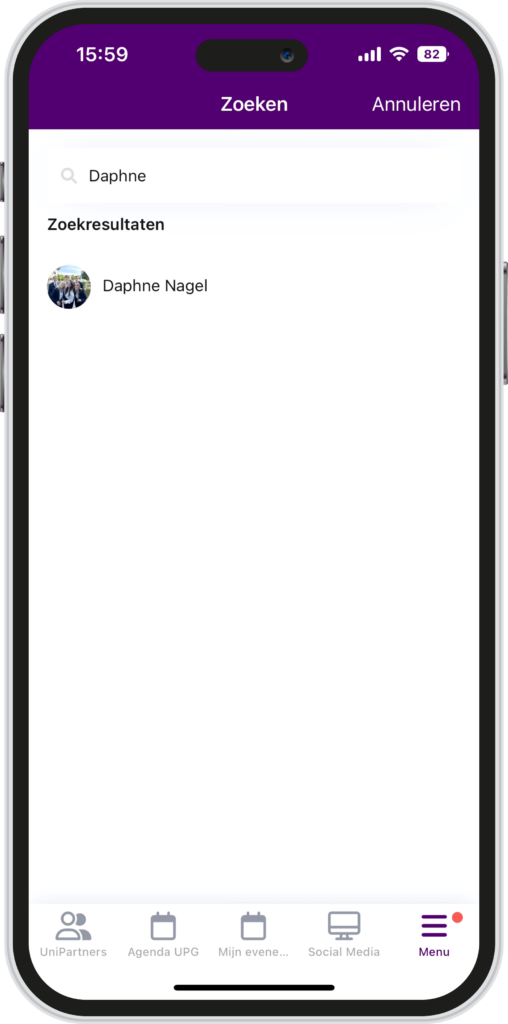
Display after search: If the setting is changed to “Display after search,” members will be visible in the list only after a targeted search is made on their name. This setting provides a more selective approach.
Display members
Display after search
Display after search
3. Inactive members
This setting allows you to set how inactive members, members who have not yet used the app, are displayed in the member list.
Options:
Visible: When the option is set to ‘Visible’, inactive members are displayed in the member list. This means that other members can see the names of inactive members when they browse the member list.
Profile hidden: When “Profile Hidden” is selected, inactive members are still in the member list, but access to their full profile is restricted. Although their names are visible, other members cannot view all the personal details and specific information in inactive members’ profiles.
Hidden in the app: If you change the setting to “Hidden in the app,” inactive members are made completely invisible to other members. They do not appear in the member list and their profile is inaccessible. This setting provides maximum privacy for inactive members, completely shielding their presence in the community.
Tip: This setting is different for each community. Some non-binding tips on how to use these settings:
If you have a community in which members already know each other, you could show inactive members by choosing ‘Visible’. For example, they can encourage each other to start using the app.
If you have a community in which it is convenient that people can see which members are part of it, but do not need direct access to all of a member’s personal information, choose “Profile hidden.
If you have a community in which members don’t know each other or don’t know each other well, choose “Hidden in the app.
4. Proposed visibility
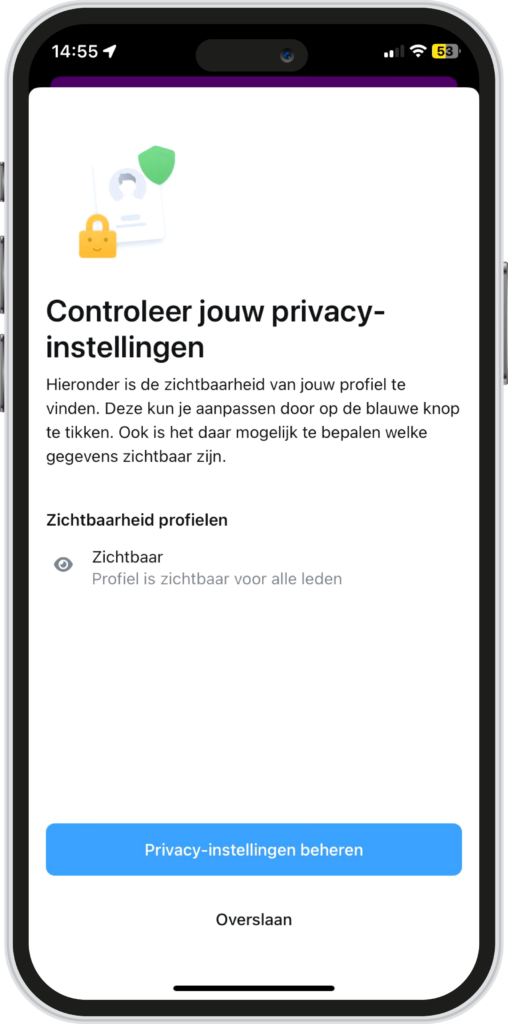
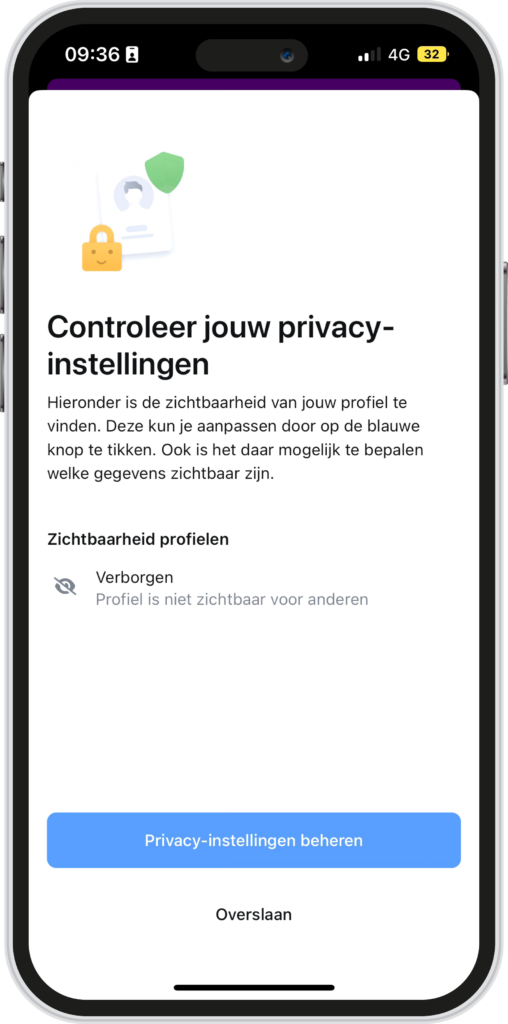
Let’s give community members a hand. In fact, this setting comes into play when a member opens the app for the first time. When a member opens the app for the first time, they are asked to make the profile visible or hidden. To help the member choose, you can indicate which option is suggested from the community administrator(s).
Options:
Visible: Choosing “Visible” suggests that the new member’s profile be visible to other members within the community. When the member chooses this suggested option, it means that the profile is immediately accessible to other members.
Hidden: In the case of “Hidden,” it is suggested that the profile be hidden from other members. Although the member is still present in the community, the profile remains shielded until the member decides to make it visible.
Visible as a proposed option
Hidden as a suggested option
Note: A member can always choose which profile information to show or not to show, but you, as a community administrator, make a suggestion in this. Again, the nature of your community and the rapport between members are important factors.
Towards a secure community
By consciously choosing and customizing these settings to your liking, you will make your community personal and secure. Hopefully the above insights will help create a community where members can connect with each other in a confidential way!