

The menu of your Socie community app is important to the success of your community. Therefore, you can customize and change the menu of the Socie app yourself. How to do that we explain in this tutorial.
How does the Socie menu work?
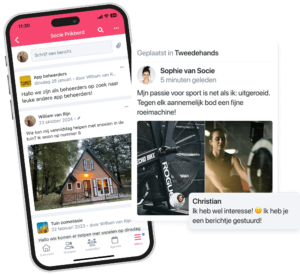
The menu of your Socie app consists of your navigation bar (at the bottom of the app) and your menu (after clicking ‘hamburger icon’) The menu is built with:
- Standard menu items
- Modules
- Possible settings
1. Standard parts
In your Socie menu, there are some default items over which the community administrator has no control. Examples are “view my membership” and “notifications. These are displayed in the “My menu” above the general menu.
2. Modules
In addition, the menu is built up by modules. When you as an administrator add modules to the app, they are also included in your menu.
Note: The menu is personalized. If a member does not have access to a module then this menu item will also not be shown in the menu.
Note: The menu is personalized. If a member does not have access to a module then this menu item will also not be shown in the menu.
What can you customize about the menu?
You can customize the following things on the menu.
- Order of menu items
- Name of menu items
- Icons of menu items
1. Adjust order of menu items
The order of your menu items determines how they are displayed in the App.
You can change the menu order by logging into the community manager. Then click Settings → Menus and navigation → Edit
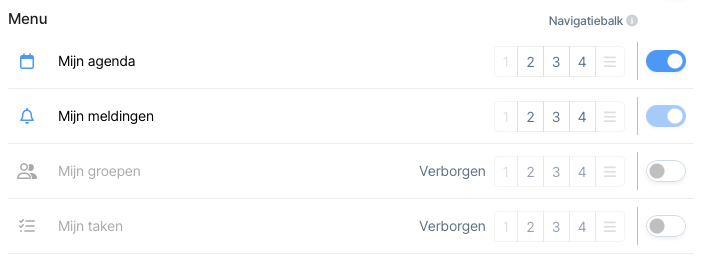
The top 4 spots will (basically) be in the navigation bar. You can choose these in 2 ways:
Drag
Drag the menu items you want to show in the navigation bar all the way to the top via the edit button. You can drag by clicking on the two dashes behind the menu item.
Choosing
Select a 2,3 or 4 after the menu items you want in place 2, 3 or 4 of the navigation bar.
2. Rename menu items
The name of the menu items is taken from the module name.
To edit them, go to the modules and click edit.
3. Customize icon of menu item
The icon of a menu item can be changed in module settings.
To edit them, go to the modules and click edit.
Customizing the “my menu”
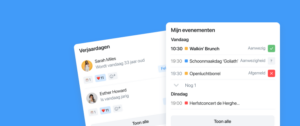
The top three modules (My Events, My Notifications and My Groups) have a fixed place as the top three menu items of your general menu.
You can disable My Events and My Groups to show only My Notifications at the top of the menu.
Click edit and then click the blue button to turn on or off.